How to check grammar mistakes in website content

Grammar checking for websites is defined as the systematic process of identifying and correcting spelling, grammar, and style errors across all publicly visible and hidden content on a live domain. Poor grammar damages site credibility and signals low authority to search engines, which directly harms your rankings. Knowing how to check grammar mistakes in website content is no longer optional for serious website owners. The good news is that a combination of AI-powered tools and structured manual review makes the process practical, fast, and repeatable.
What tools do you need to check grammar mistakes on a website?
The right tools determine how thorough and efficient your grammar audit will be. At minimum, you need three things: a URL-based content extractor, an AI grammar engine, and a domain-specific dictionary.
URL-based grammar checkers fetch readable content from live webpages automatically, without any manual copy and paste. That matters because manual copying introduces formatting errors and misses content buried in templates or dynamic sections. The best tools go further, scanning meta descriptions, image alt text, and heading tags, not just the body copy visible to readers.

AI-powered scanners cover more ground than basic spell checkers by analysing meta tags, alt text, and headings for comprehensive content quality. This is the difference between a surface check and a genuine audit. A page might look clean to a reader but contain a misspelled product name in its meta description, which affects both click-through rates and brand perception.
Custom domain-specific dictionaries prevent tools from flagging brand names, acronyms, and technical terms as errors. Without one, a tool will repeatedly flag your product names or industry jargon, creating noise that slows down your review. Adding these terms once to a custom dictionary removes the problem permanently.
| Feature category | What to look for |
|---|---|
| Content extraction | Automatic URL fetching, no manual copy required |
| Scan depth | Body text, meta tags, alt text, and headings |
| Error classification | Spelling, grammar, style, and tone categories |
| Dictionary support | Custom entries for brand names and jargon |
| Reporting | Downloadable summaries with suggested corrections |
Pro Tip: Before committing to any tool, paste a page you know contains deliberate errors and verify the tool catches them. This simple test reveals whether the scanner reads your site’s content accurately or skips dynamically loaded sections.
How to check grammar mistakes in website pages step by step
A structured workflow prevents errors from slipping through and makes the correction process far quicker than ad hoc checking.
-
Enter your URL. Paste the page address into your chosen grammar tool. The tool fetches the readable content, stripping out navigation menus, cookie banners, and scripts that are not part of your editorial copy.
-
Run the full scan. The AI engine analyses the extracted text and classifies errors into categories: spelling mistakes, grammatical errors, punctuation issues, style inconsistencies, and tone problems. Each category gets flagged separately so you can prioritise.
-
Review quick fixes first. Spelling and punctuation errors are the fastest to resolve. Work through these before tackling grammar or style suggestions, which require more judgement. AI tools categorise flagged issues into quick fixes and rephrasing suggestions, which helps you triage efficiently.
-
Assess rephrasing suggestions. Style and tone flags often point to awkward phrasing or passive constructions. Read each suggestion in context before accepting it. Automated tools occasionally suggest changes that alter your intended meaning.
-
Apply corrections in your CMS. Make changes directly in your content management system. Do not edit the extracted text in the tool and then copy it back, as formatting can break in transit.
-
Re-scan after editing. Run the page through the tool again once you have made changes. New errors occasionally appear when surrounding text shifts during editing.
-
Download your report. Downloadable reports summarise spelling issues with suggested corrections, giving you a record of what was found and fixed. This is useful for tracking content quality over time and demonstrating progress to stakeholders.
Pro Tip: When a tool flags an error, use your browser’s “Find on page” function (Ctrl+F or Cmd+F) to locate the exact sentence in your CMS instantly. This cuts navigation time significantly on long pages.
How to manually verify and fix grammar issues beyond automated checks
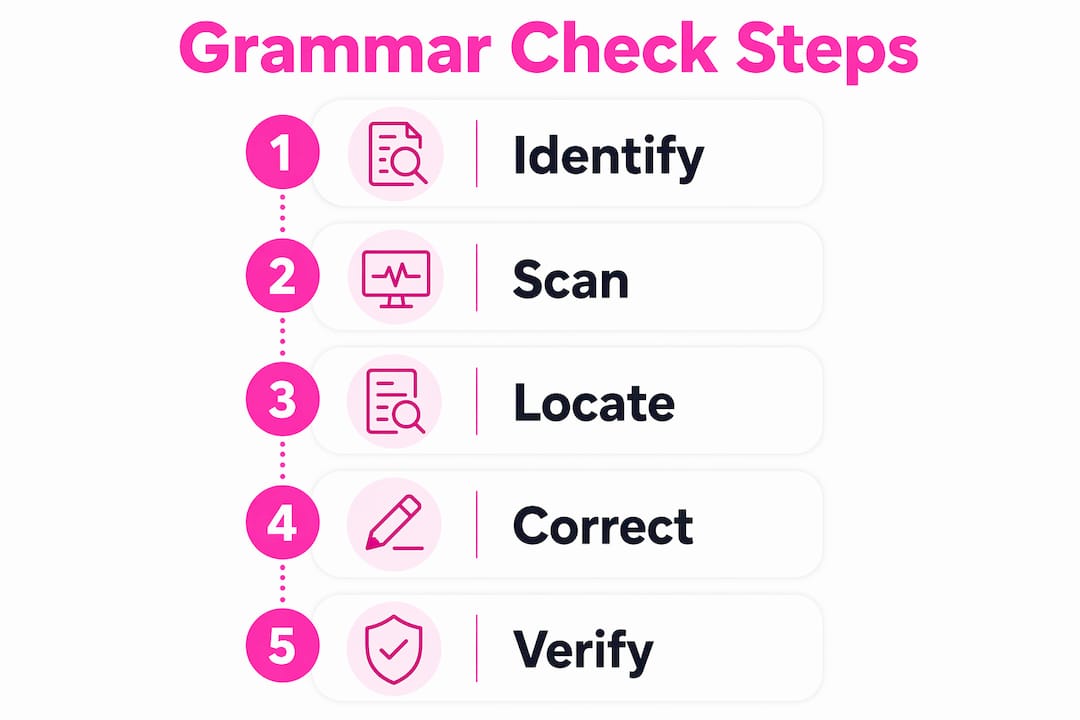
Automated scans are fast, but they do not catch everything. Effective grammar checking combines automated scans with human review to maintain professionalism and brand voice consistency. A tool will not notice that your tone shifts from formal to casual halfway through a product page, or that a technical explanation contradicts information on another page.
Manual review should focus on the areas automated tools handle least well. Read each page aloud, because your ear catches awkward phrasing that your eye skips. Pay particular attention to sentences that feel long or convoluted, as these are the ones that lose readers.
Grammar checking signals brand authority and user trust, not just error avoidance. That means your manual review should also assess whether the content sounds like your brand. Consistent tone across all pages builds familiarity and confidence with your audience.
Key areas to check manually:
- Meta descriptions and title tags. These are often written quickly and rarely revisited. A typo here appears directly in search results.
- Image alt text. Alt text is invisible to most readers but indexed by search engines and read by screen readers. Errors here affect both SEO and accessibility.
- Headings and subheadings. These carry structural weight. An error in a heading is more visible than one buried in a paragraph.
- Call-to-action buttons and labels. Short text is easy to overlook and hard to correct once a page is live.
- Product names and brand terms. Verify these match your official naming conventions exactly, including capitalisation.
Pro Tip: Create a simple proofreading checklist in a shared document and assign it to every page before publication. A consistent checklist prevents the “I thought someone else checked it” problem that lets errors through on busy sites.
How do you handle grammar checking on dynamic or complex websites?
Dynamic websites present a specific challenge. JavaScript-driven sites may return minimal content to URL-based grammar checkers, because the tool fetches the page before the browser has rendered the JavaScript that populates the content. Single-page applications built with frameworks like React or Vue are particularly affected.
The practical solution is a hybrid approach. Use your automated tool for static pages and template sections, then switch to manual text extraction for dynamic content. Copy the rendered text directly from the browser (after the page has fully loaded) and paste it into your grammar tool’s text input mode.
Common issues and how to address them:
- Blank or near-empty scan results. The tool fetched the page before JavaScript rendered the content. Use manual paste mode instead.
- Navigation text included in results. The tool did not strip non-editorial content. Look for a tool that filters navigation and footer text automatically.
- Repeated false positives. Brand names or technical terms are being flagged repeatedly. Add them to your custom dictionary.
- Inconsistent results across scans. Dynamic content changes between page loads. Scan the page multiple times and compare results.
- Partial page coverage. Some tools cap the amount of text they scan per URL. Break long pages into sections and scan each separately.
Pro Tip: Combine the output from two different scanning approaches for complex pages: one URL-based scan for structural elements and one manual paste scan for body content. Cross-referencing both outputs catches errors that either method alone would miss.
Key takeaways
Checking grammar mistakes on a website requires URL-based AI scanning, domain-specific dictionaries, and structured manual review working together to maintain professional, trustworthy content.
| Point | Details |
|---|---|
| Use URL-based tools | Automated extraction removes the need for manual copying and reduces missed content. |
| Scan hidden content too | Meta tags, alt text, and headings contain errors that affect SEO and accessibility. |
| Build a custom dictionary | Adding brand names and jargon prevents repeated false positives and speeds up review. |
| Combine automation with manual checks | Automated tools miss tone shifts and brand voice inconsistencies that human review catches. |
| Handle dynamic sites differently | JavaScript-rendered pages need manual text extraction before grammar scanning. |
Why grammar checking is more than just fixing typos
Websites I have reviewed over the years share a pattern: the ones that lose visitor trust fastest are not the ones with the worst design. They are the ones with the most errors in their copy. A misspelled word in a product description chips away at trust in a way that a dated colour scheme simply does not.
The common mistake I see website owners make is treating grammar checking as a one-time task. They run a scan before launch, fix what comes up, and consider it done. But websites are living documents. New pages get added, existing ones get edited, and errors creep back in. The sites that maintain the strongest credibility are the ones with a regular checking schedule, not just a pre-launch audit.
I have also found that the reasons spelling errors persist even after manual checks are often structural. Writers become blind to their own errors. Editors focus on meaning and miss surface mistakes. Automated tools catch what human eyes skip, which is exactly why the two approaches work best together rather than as alternatives.
The role of AI in this process has changed significantly. Early grammar tools flagged errors mechanically, with no understanding of context. Modern AI understands sentence structure, tone, and intent. That shift means you can now get genuinely useful rephrasing suggestions, not just red underlines. The tools are not perfect, but they are good enough to make a measurable difference to content quality when used consistently.
— Website
Websitespellchecker: site-wide grammar checking made practical
Keeping every page on your site error-free is a real challenge, especially as your content grows.
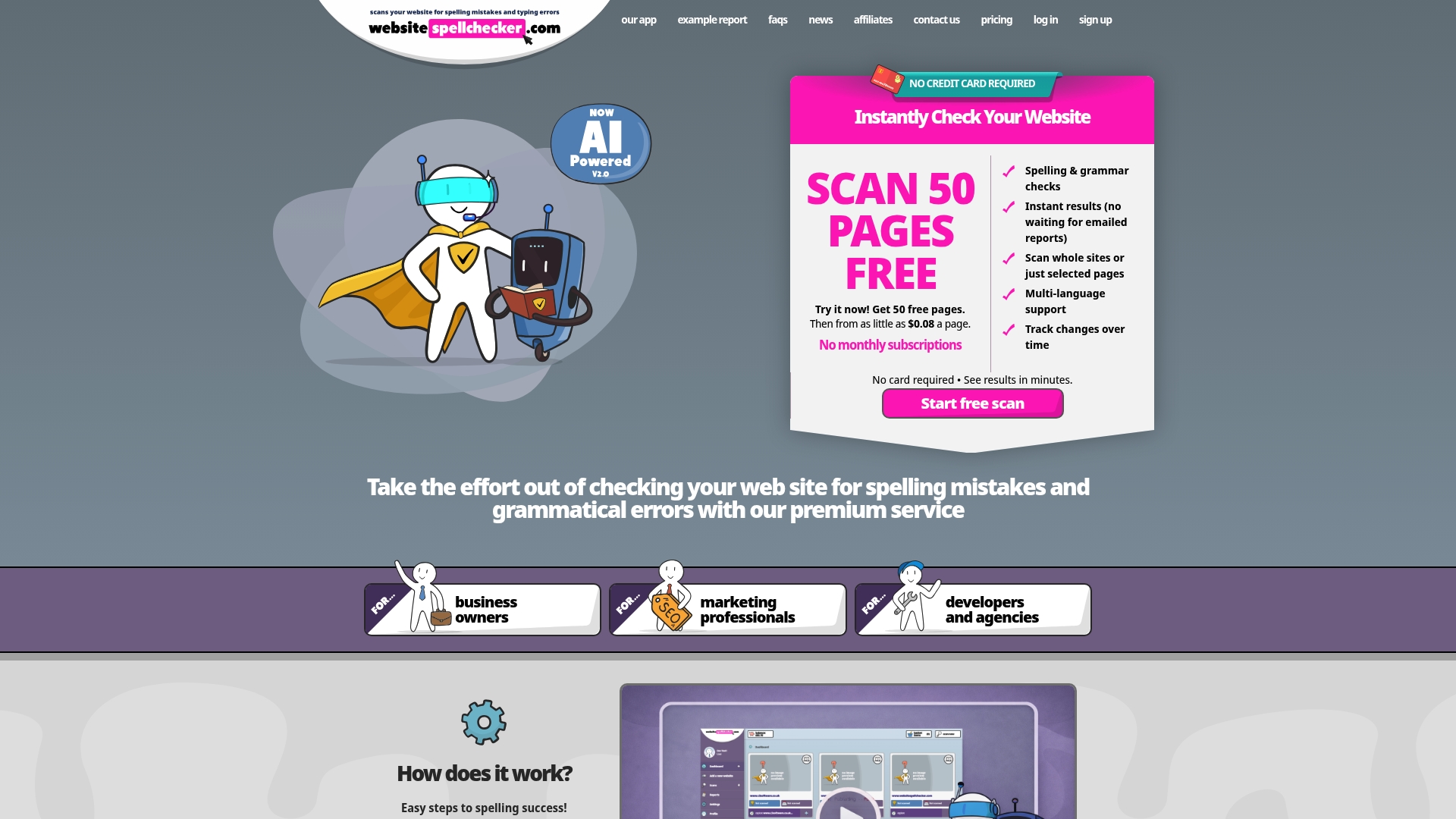
Websitespellchecker scans your entire site in one go using AI technology, covering body text, meta tags, alt text, and headings. It flags spelling and grammar errors with suggested corrections and tracks changes over time so you can see exactly where quality is improving. The spell check report gives you a clear, downloadable summary of every issue found, making it straightforward to assign fixes to your team. For business owners who need consistent, professional content across every page, Websitespellchecker offers a dedicated service built around that exact need.
FAQ
Does poor grammar affect my website’s search rankings?
Poor grammar reduces site authority and signals low relevance to search engines, which negatively affects rankings. Consistent grammar errors also increase bounce rates, which compounds the SEO impact.
Can automated tools check grammar in meta tags and alt text?
High-quality AI scanners analyse meta tags, image alt text, and headings, not just visible body text. Basic tools often miss these areas, so choosing a tool with full-depth scanning is important.
What should I do if my grammar tool keeps flagging correct brand terms?
Add those terms to a custom domain-specific dictionary within your tool. This prevents repeated false positives and keeps your review focused on genuine errors.
Why does my grammar checker return blank results for some pages?
Blank results usually mean the page uses JavaScript to load content, and the tool fetched the page before rendering completed. Switch to manual paste mode by copying the fully loaded page text directly from your browser.
How often should I run a grammar check on my website?
Run a full site scan at least once a month, and run individual page checks whenever content is added or edited. Regular checks prevent errors from accumulating and keep your content consistently professional.