How to export an audit to PDF: a step-by-step guide

The fastest way to export an audit to PDF is to open the report or audit log, click Export (usually top-right or in the toolbar), select PDF as the format, choose full detail or summary, and confirm. If the platform only offers raw data formats, export as CSV or JSON first and convert with a report builder or command-line tool afterwards.
There are two routes here, and knowing which one you’re on saves time. Some systems, like Power BI or SEMrush, generate a native PDF directly from the report view. Others, including OneTrust, export the original evidence in its native file type, which means you’ll need a separate conversion step if you want everything in one PDF. Before you click anything, confirm three things: you have export permissions, you’ve set the correct scope and filters, and you know whether you need the full audit trail or just a summary.
The universal sequence looks like this:
- Navigate to the audit or report view and locate the export control.
- Scope the export: date range, users, resources, and full versus summary detail.
- Export, then verify the PDF opens correctly and contains the expected record count.
Pro Tip: If your audit log runs into thousands of records, split the export into date-bounded chunks before converting to PDF. A single 10,000-row export is far more likely to hit a platform’s page or file-size cap than three smaller ones, and splitting also makes proofreading and reconciliation much faster afterwards.
Key Takeaways
Exporting an audit to PDF reliably depends on matching the right method, native export, scripted automation, or manual conversion, to your platform’s actual capabilities and limits.
| Point | Details |
|---|---|
| Scope before you export | Define date range, filters, and full versus summary detail before choosing a format. |
| Know your platform’s export type | Power BI and SEMrush generate native PDFs; OneTrust keeps evidence in its original file type. |
| Automate recurring exports | Use PowerShell or REST APIs with streaming exporters to avoid browser timeouts on large reports. |
| Watch for hard limits | Power BI caps exports at 50 pages; split large reports rather than trimming content. |
| Proofread before publishing | Websitespellchecker catches spelling and terminology errors in report content before final PDF export. |
Table of Contents
- What is the universal workflow for exporting audit to PDF?
- How do you export audit reports from Power BI, Jira, OneTrust, and other tools?
- Can you automate audit PDF exports with PowerShell or an API?
- How do you convert CSV, JSON, or image exports into a branded PDF?
- What should you check before publishing an exported PDF audit report?
- How I decide the best way to export an audit report
- How Websitespellchecker keeps your audit reports error-free before export
- Where to check platform-specific export documentation
- Common questions about exporting audits to PDF
- Sources
What is the universal workflow for exporting audit to PDF?
Nearly every audit or reporting tool, regardless of vendor, follows the same three-stage logic once you strip away the interface differences. Understanding this pattern means you can walk into an unfamiliar platform and find the export function within a minute or two, rather than hunting through menus.
Step 1: Define scope. Decide what the PDF actually needs to contain. Are you exporting a single audit, a date range of log activity, or filtered results for one user or resource? Notify’s audit export documentation describes a common pattern here: choosing between a “Full audit” export, which includes every field and note, and a “Summary audit” export, which pulls only fields marked for inclusion in the summary report and produces a condensed table with scores and an overall grade. That distinction alone determines whether your PDF runs to three pages or thirty.
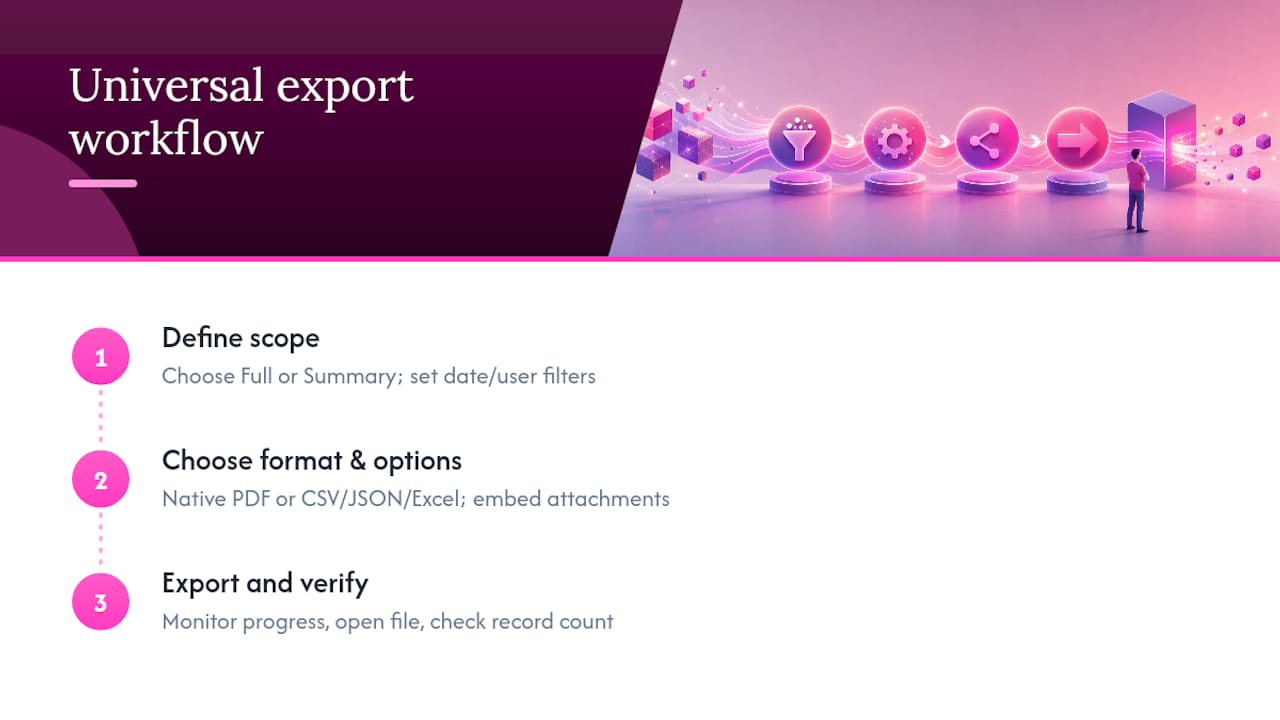
Step 2: Choose format and options. If native PDF export exists, use it. If not, you’re looking at CSV, JSON, or Excel as an intermediate format that you’ll convert later. At this stage also decide on inclusions: do you need attachments embedded, or just the metadata and findings?
Step 3: Export and verify. Watch the progress indicator (some platforms process asynchronously and email you a link once ready), confirm the resulting file opens without corruption, and check the record count against what you expected.
Export controls tend to live in predictable places: the report header (Power BI, SEMrush), a toolbar above the results list (audit trail viewers), or a dedicated menu item labelled “Export,” “Download,” or “Save as PDF.” If you can’t find it, check whether an administrator has restricted export permissions for your role before assuming the feature doesn’t exist.
Pro Tip: Large PDFs are usually a symptom of over-scoping, not a platform failure. Before exporting, ask whether you actually need every attachment embedded or whether a summary export with a separate evidence folder would serve the same purpose at a fraction of the file size.
How do you export audit reports from Power BI, Jira, OneTrust, and other tools?
Each platform handles PDF export a little differently, and the differences matter more than you’d expect. Here’s what to expect from the systems IT teams encounter most often.
Power BI
Power BI supports native PDF export from both the service and Power BI Desktop. Navigate to the report, select File > Export to PDF, and choose whether you want current filter values or the report’s default values reflected in the output. According to Microsoft’s documentation, reports with too many pages cannot be exported, and very large files are not supported. Some visuals don’t render correctly in PDF, and sensitivity labels applied to the report can carry over to the exported file, which affects who can open it afterwards.
Microsoft Purview and audit logs
For Microsoft 365 audit logs, the standard route is the Purview compliance portal’s audit search, followed by an export of the search results. Microsoft Learn’s guidance covers exporting, formatting, and viewing audit log records, and it recommends PowerShell for anything beyond a quick manual pull, since the portal UI has practical limits on result volume that scripting bypasses.
Jira and Atlassian tools
Jira doesn’t offer a clean native PDF export for audit logs or issue history in the way Power BI does. Most admins either use browser print-to-PDF on the audit log screen (workable for small ranges but messy for anything long) or install a marketplace add-on built specifically for PDF report generation. Atlassian Community threads are full of workarounds involving exporting to CSV first, then formatting the data into a report template, because the platform genuinely wasn’t designed with polished PDF audit exports as a priority.
OneTrust
OneTrust behaves differently from most tools on this list. According to OneTrust’s own knowledge base, downloaded evidence retains its original file type when exported. If a piece of evidence was uploaded as a JPEG or Word document, it stays that way in the export; OneTrust isn’t converting everything into a single unified PDF for you. If you need one consolidated PDF, plan on a manual or scripted merge step afterwards.
SEMrush
In Site Audit, navigate to the tab you want (Overview, Issues, or a specific check), and use the PDF export button to populate a report from that tab’s data. SEMrush’s knowledge base notes that reports can be scheduled, emailed automatically, and branded, all managed from the My Reports area, which makes it genuinely useful for recurring client-facing audits rather than one-off pulls.
DevExpress XtraReport
For developers building custom reporting into internal tools, DevExpress XtraReports exposes XtraReport.ExportToPdf(path, PdfExportOptions) as the core method, with PdfStreamingExporter recommended for very large reports to avoid memory pressure. DevExpress documentation covers PdfExportOptions in detail, including page range selection, image quality settings, PDF/A compatibility, and security options like password protection.
| Platform | Native PDF? | Key limitation |
|---|---|---|
| Power BI | Yes | 50-page limit, some visuals unsupported |
| Microsoft Purview | Via export + formatting | Portal UI has practical volume limits; PowerShell recommended |
| Jira | No (workarounds only) | Relies on print-to-PDF or marketplace add-ons |
| OneTrust | Evidence stays in original format | No automatic conversion to unified PDF |
| SEMrush | Yes | Tab-specific export; scheduling available |
| DevExpress XtraReport | Yes (developer API) | Requires code implementation |
Pro Tip: If a Power BI report is bumping against the 50-page ceiling, split it by department or date range into two or three separate exports rather than trying to trim visuals to fit. It preserves data fidelity and keeps each PDF easier for stakeholders to skim.
Can you automate audit PDF exports with PowerShell or an API?
Automation makes sense once you’re generating the same report on a recurring basis, whether that’s monthly compliance evidence, quarterly access reviews, or archival exports triggered by a retention policy. Manual clicking doesn’t scale past the second or third repeat.
- Extract the audit data. For Microsoft 365 environments, Microsoft’s Purview documentation walks through using PowerShell cmdlets to search audit logs and export the results, which is far more reliable than the portal UI once you’re pulling more than a few thousand records.
- Post-process into a report structure. Raw PowerShell output tends to be a flat table. Feed it into a templated report engine, or a script that maps fields into sections (cover page, summary table, detailed appendix) before rendering.
- Render to PDF. This is where a report engine like DevExpress XtraReports earns its keep. Its
ExportToPdfAsyncmethod handles rendering without blocking the rest of your automation pipeline, which matters if you’re running this on a schedule overnight.
For API-driven platforms, the pattern shifts slightly: trigger a paginated export request, poll for completion if the platform processes asynchronously, then either request server-side PDF rendering directly or pull raw JSON and generate the PDF yourself downstream. Power BI’s REST endpoints for report export follow this asynchronous model, and you’ll need to handle the polling loop and respect the same page and size limits that apply to manual exports.
Server-side rendering exists precisely because browser-based print-to-PDF wasn’t built for scale. A browser tab trying to lay out a 40-page table with embedded images will time out or produce broken page breaks long before a streaming exporter running server-side even notices the load.
Pro Tip: If your automation regularly touches large datasets, standardise on a streaming exporter (like PdfStreamingExporter) or a paginated report engine rather than a browser automation tool. It’s the difference between a script that fails silently at 2 a.m. and one you never have to think about.
How do you convert CSV, JSON, or image exports into a branded PDF?
Plenty of platforms, OneTrust among them, simply won’t hand you a polished PDF. What you get instead is raw evidence or structured data, and turning that into something a compliance officer or client can actually read is a separate job.
Your options scale with volume and how much branding and reproducible exports matter:
- Report builders (DevExpress XtraReports, or a purpose-built tool like JetStack’s Export Studio) work best when you need a consistent, branded output repeatedly. Export Studio’s approach is worth noting: it offers scope toggles, a live preview, and a document tab for branding, producing a multi-chapter document with a cover page, executive summary, data exhibits, and appendices, while still allowing a raw JSON or CSV pull for anyone who needs machine-readable data alongside the polished version.
- Command-line tools like wkhtmltopdf, pandoc, or a headless LibreOffice instance suit one-off or lightly automated conversions where full branding infrastructure would be overkill.
- Print-to-PDF from a browser is fine for small, occasional exports but breaks down fast on anything with more than a handful of pages or embedded tables.
| Approach | Best for | Trade-off |
|---|---|---|
| Report engine (e.g. XtraReports, Export Studio) | Recurring, branded, multi-section reports | Setup time upfront |
| Command-line converter (pandoc, wkhtmltopdf) | One-off or scripted conversions | Limited branding control |
| Browser print-to-PDF | Small, occasional exports | Breaks on large tables |
A typical multi-part structure combines a cover page, an executive summary, the data exhibits pulled from your CSV or JSON export, and an appendix with raw evidence counts that reconcile against the summary figures. That reconciliation step matters more than it sounds. If your appendix lists 4,847 records but your executive summary references 4,900, someone will notice, and it undermines the report’s credibility.
Pro Tip: Keep exported text selectable rather than flattening pages into images. A searchable PDF is faster to review, easier to redact if needed, and far more accessible. Only reach for OCR when you’re stuck converting scanned evidence that genuinely started life as an image.
What should you check before publishing an exported PDF audit report?
A PDF that opens without errors isn’t automatically a PDF that’s ready to send. Before it lands in front of an auditor, a client, or a compliance officer, run through structural, technical, security, and editorial checks.
Structural checks: Confirm the report includes a cover page, executive summary, a clear statement of scope and methodology, and appendices where raw evidence counts reconcile against the totals stated in the summary. Our website audit report template guide covers the sections that make a report genuinely usable rather than just complete.

Technical checks: Verify page count and file size sit within platform limits, confirm the text is selectable rather than rendered as images, check that embedded attachments opened correctly, and review pagination for anything that got cut mid-table.
Security checks: Confirm sensitivity labels carried over correctly, apply password protection or encryption if the content is sensitive, restrict access appropriately, and add a watermark if the document is a draft or restricted-circulation copy. Digital signatures matter here too, particularly for compliance evidence that might face external scrutiny later.
Editorial checks: This is the step teams skip most often, and it’s the one that undermines trust fastest. A report riddled with inconsistent terminology, misspelt vendor names, or grammatical errors reads as sloppy regardless of how sound the underlying audit was. Tools built for checking grammar mistakes in website content apply just as well to audit documentation as they do to marketing copy, and running a proofreading pass before final export catches the errors that slip past a tired reviewer at 6 p.m.
Text-extraction proofreading tools can scan a finished PDF directly and return a page-referenced table of errors, which makes final review considerably faster than reading the whole document line by line. Some tools, like this PDF proofreading option, process the document server-side and don’t retain it afterwards, which matters if the report contains sensitive audit findings.
Pro Tip: Reconcile sample record counts between your raw export and the published PDF before you send it anywhere. Pick five records at random from the raw CSV and confirm each one appears correctly in the PDF appendix. It takes two minutes and catches truncation errors that a visual skim will miss entirely.
Reports that miss embedded attachments or mismatch record counts between summary and appendix are among the most common quality failures IT teams flag after the fact, according to guidance from Notify’s export documentation on structuring full versus summary audits correctly from the outset.
How I decide the best way to export an audit report
Every export decision comes down to the same three questions, asked in the same order, regardless of platform: is this secure, is it accurate, and does it look right?
Security and permissions come first, always. Before I even think about format, I confirm who’s allowed to generate this export and who’s allowed to open it afterwards. A beautifully branded PDF that leaks sensitive audit findings to the wrong inbox is worse than no export at all.
Fidelity comes second. Can I actually search the text? Will the record counts in the appendix match what’s in the raw data? This is where I lean towards native PDF export for smaller, quick-turnaround reports, since there’s less that can go wrong in translation. For anything substantial, I’d rather build a paginated report through a proper report engine than trust a browser’s print function not to choke halfway through a forty-page table.
Branding comes last, not because it doesn’t matter, but because a polished cover page on an inaccurate report is worse than a plain one on a correct report. I’ve watched a team spend an afternoon perfecting a report template, only to discover afterwards that the underlying export had silently truncated at 5,000 rows. Once, switching a monthly compliance export from browser-based generation to a streamed, paginated report cut failed exports from a regular occurrence to essentially zero, simply because the streaming exporter didn’t care how many rows it was handling.
How Websitespellchecker keeps your audit reports error-free before export
A polished PDF audit report loses credibility fast if it’s full of typos, inconsistent terminology, or awkward phrasing, and that’s a problem no export tool on this list solves for you. Websitespellchecker scans your report content, website copy, or documentation before it ever reaches the export stage, catching spelling mistakes, grammatical slips, and inconsistent terminology across every page.

For teams generating recurring audit reports, that consistency check matters more than it might seem. Catching “colour” in one section and “color” in another, or a misspelt vendor name that appears six times, saves the rework and awkward client queries that come from sending out a report with visible errors. Websitespellchecker’s downloadable report format gives you a shareable PDF you can attach directly alongside your audit output, and the platform works on a pay-per-scan basis, so you’re not locked into a subscription for occasional use.
If you manage websites or reports for clients, the developer and agency-focused features are worth a look, particularly if you’re producing audit documentation regularly enough that manual proofreading has started eating into billable time. Run a free scan on your next report draft before you export it to PDF, and see what it catches.
Where to check platform-specific export documentation
Vendor documentation moves faster than any single guide can track, so bookmark these for the specific limits and options each platform updates over time.
- Power BI’s PDF export guide covers current page and file-size limits along with sensitivity label behaviour.
- Microsoft Purview’s audit export documentation explains the PowerShell commands for pulling and formatting audit log records at scale.
- DevExpress’s XtraReports export reference documents the API methods and options for developers building custom PDF generation.
- OneTrust’s export format article clarifies why evidence exports don’t automatically convert to PDF.
- SEMrush’s Site Audit export instructions detail the scheduling and branding options available for recurring reports.
Common questions about exporting audits to PDF
Why doesn’t my platform have a PDF export option?
Some tools, Jira among them, don’t offer native PDF export for audit history. Check first whether an administrator has disabled the export feature at the account level, then look at browser print-to-PDF or a marketplace add-on as alternatives.
What’s the difference between a full audit export and a summary export?
A full export includes every field, note, and piece of supporting detail recorded against the audit. A summary export pulls only the fields marked for inclusion in the summary report, producing a shorter document with scores and an overall grade rather than complete detail.
Can I export audit logs automatically on a schedule?
Yes, most enterprise platforms support this through PowerShell scripts or REST APIs. Microsoft’s Purview audit tools support scripted searches and exports, and report engines like DevExpress XtraReports can render the results to PDF as part of the same automated pipeline.
Why does my exported PDF contain images instead of readable text?
This usually happens when a report is generated through a screenshot-based or print-to-PDF method rather than a proper export function. Look for a native export option first, and reserve OCR conversion for cases where you’re stuck with genuinely scanned, image-based evidence.
How do I handle an audit log too large for a single PDF export?
Split it by date range or department before exporting. This keeps each file under platform limits like Power BI’s 50-page cap, and it makes the resulting documents far easier to review and proofread individually.