Website usability review: a practical guide for UK businesses

A website usability review is a structured assessment that checks whether real visitors can find information, complete tasks, and trust your site — according to ISO 9241-210, it identifies the obstacles stopping users from achieving their goals. The immediate next step: run an automated scan of your homepage and one conversion page (your checkout or contact form) today.
A thorough review covers:
- Navigation — can visitors move between pages without confusion?
- Broken links and forms — do key pathways actually work?
- Mobile and responsive behaviour — does the layout hold up on a phone?
- Load speed — are pages fast enough to keep visitors engaged?
- Accessibility — can all users interact with your content?
- Content errors — spelling mistakes, grammar issues, and missing words that chip away at trust
Table of Contents
- How do you run a website usability review step by step?
- What does an automated spelling and grammar scanner actually find?
- How do you turn scan results into a prioritised action plan?
- Where does automation stop — and what still needs human testing?
- Two practical workflows for UK small and medium businesses
- Why Websitespellchecker is the recommended tool for UK businesses
- Key takeaways
- The case for automation-first — with honest caveats
- Run a free scan and see your results in minutes
- Useful sources for further reading
How do you run a website usability review step by step?
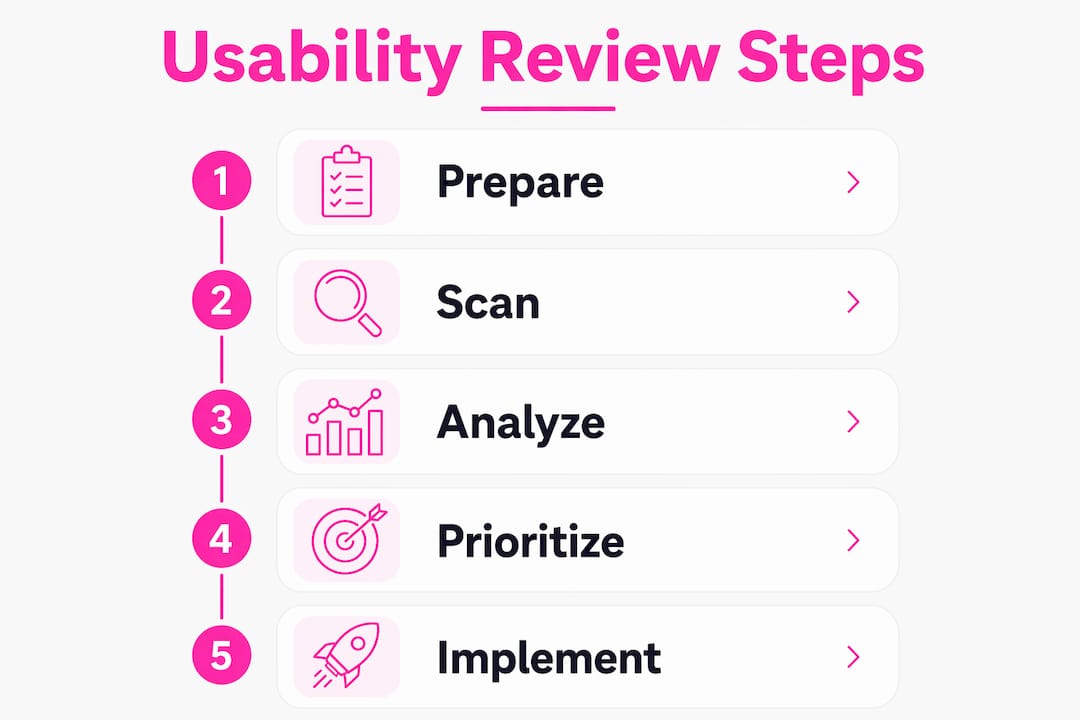
A practical site usability assessment does not require a specialist agency or weeks of planning. This six-step workflow fits a single afternoon.
- Define scope and goals (15 minutes). List the pages that matter most: homepage, product or service pages, contact form, and checkout. Write one goal per page (e.g. “visitor submits enquiry form”).
- Run automated scans (30 minutes). Use an AI-powered scanner to check spelling, grammar, broken links, and missing alt text across your chosen pages. Automated tools scan sites faster and more consistently than manual audits.
- Check core technical issues (20 minutes). Confirm that forms submit correctly, that redirects resolve, and that page titles and meta descriptions are present.
- Sample manual checks (30–60 minutes). Walk through two or three key user journeys yourself. Note anything that feels confusing, slow, or unclear.
- Compile findings into a report (20 minutes). Group issues by type: content errors, technical faults, and UX friction. A website audit report template keeps this tidy.
- Assign fixes with owners and deadlines (15 minutes). Every issue needs a named owner and a target date, or it will not get done.
Pro Tip: Involve at least one stakeholder when reviewing the scan report. Sharing findings in a group session builds usability awareness across the team and makes prioritisation decisions faster — a practice backed by the CPUX-UT curriculum.

What does an automated spelling and grammar scanner actually find?
Automation handles the repeatable, site-wide checks that would take hours to do manually. Here is what a well-configured scanner reliably detects:
- Spelling mistakes and typos across every page
- Grammar flags: subject-verb disagreement, missing words, awkward constructions
- Broken internal and external links
- Missing image alt text
- Duplicate page titles or meta descriptions
What automation cannot do is equally worth knowing. Research confirms that automated checks cannot evaluate emotional resonance, context-dependent meaning, or nuanced phrasing. A sentence that is grammatically correct but confusing to a first-time visitor will pass every automated check without issue.
A typical report entry looks like this:
| Field | Example |
|---|---|
| URL | /contact |
| Issue | “recieve” — spelling error |
| Suggested fix | Replace with “receive” |
| Severity | High |
Configuration matters as much as the tool itself. For UK English sites, set your scanner’s dictionary to British English and build a custom ignore list for brand names, product codes, and industry terms. Without this step, you will spend time dismissing false positives rather than fixing real errors. The W3C WAI makes the same point about accessibility tools: configuration determines the quality of your results.
Pro Tip: If your CMS generates dynamic content (e.g. product descriptions pulled from a database), check whether your scanner covers those pages or only static HTML. Some tools need specific configuration to reach CMS-generated fragments.
How do you turn scan results into a prioritised action plan?
Raw issue counts are misleading. A scan might return 200 findings, but three of them are probably responsible for most of your conversion losses. Baymard Institute research supports prioritising by business impact rather than volume: fixing a small number of high-impact errors typically moves the needle far more than clearing a long tail of minor issues.
Use an impact × effort matrix to triage your findings:
Quick wins (high impact, low effort):
- Fix a broken call-to-action link on the homepage
- Correct a pricing typo that undermines trust
- Clarify an ambiguous form field label
- Add missing alt text to a hero image
- Remove a duplicate page title causing SEO confusion
Longer-term work (high impact, higher effort):
- Restructure a confusing multi-step checkout flow
- Redesign a navigation menu that buries key categories
For each issue, create a ticket with these fields:
| Field | Purpose |
|---|---|
| URL | Exact page affected |
| Issue summary | One-sentence description |
| Severity (impact) | Critical / High / Medium / Low |
| Estimated effort | Hours or story points |
| Suggested fix | Specific remediation |
| Owner | Named person responsible |
| Verification steps | How to confirm the fix worked |
Where does automation stop — and what still needs human testing?
Automated tools are excellent at structural and mechanical checks. They are poor at anything requiring judgement. Machines miss:
- Context-dependent meaning (a technically correct sentence that misleads users)
- Emotional tone and brand voice consistency
- Confusing multi-step user journeys
- The experience of completing a task under realistic conditions
Three human checks that pair well with automated scans:
- Quick moderated task test. Ask one colleague to complete a key task (e.g. submit a contact form) while thinking aloud. Five minutes of observation reveals friction that no scanner will flag.
- First-click test. Show a colleague your homepage and ask where they would click to find a specific piece of information. Wrong first clicks indicate navigation problems.
- Stakeholder walkthrough. Have a decision-maker attempt a purchase or enquiry journey. Their questions and hesitations are direct evidence for prioritisation decisions.
W3C WAI recommends combining automated tests with manual evaluation for exactly this reason — particularly for accessibility, where automated tools identify only a portion of real barriers. Once you have human findings, use them to reclassify severity scores in your issue tracker and to write clearer issue narratives for your design team.
Pro Tip: You do not need a formal usability lab. A 20-minute session with one real user — or even a stakeholder unfamiliar with the site’s back-end — will surface issues that weeks of automated scanning cannot.
Two practical workflows for UK small and medium businesses
Pragmatic, low-cost evaluation methods are the most realistic option for most UK SMEs. Here are two ready-to-use timelines.
One-day sprint
- Morning (2 hours): Define scope, run automated scan on homepage and two conversion pages, export report.
- Late morning (1 hour): Triage findings — identify critical and high-severity items only.
- Afternoon (2–3 hours): Fix the top three to five issues (broken links, spelling errors, form labels). Deploy and verify.
Who: One marketing or content person, with 30 minutes from a developer for any technical fixes. Total cost: internal time only.
Two-week review
- Days 1–2: Full-site automated scan, export findings, set up issue tracker.
- Days 3–5: Manual sampling of key journeys; one moderated task test with a real user.
- Days 6–8: Stakeholder review meeting; reclassify severity using human insights.
- Days 9–12: Staged fixes, starting with critical items.
- Days 13–14: Re-scan to verify fixes; document remaining backlog.
For per-page usage pricing, a free tier scan of your homepage and a handful of key pages costs nothing and gives you an immediate baseline. Paid scans for larger sites are billed per page, so you control spend without committing to a monthly subscription.
Why Websitespellchecker is the recommended tool for UK businesses
Websitespellchecker is built for exactly this workflow. Its AI-powered scanner covers entire sites in one pass, with British English dictionary support so you get accurate results without false positives from UK spellings.
Key features:
- Site-wide AI scanning across all pages, not just a sample
- British English dictionary with custom ignore lists for brand names and industry terms
- Scan history and change tracking so you can see what has improved (or regressed) over time
- Downloadable PDF reports you can share with clients or stakeholders
- Bespoke scan configuration for CMS-generated content and dynamic pages
- Per-page usage billing with a free tier — no subscription required
The workflow is straightforward: run a free scan with tools like Eagle Eye AI Detector for Google Docs → export the report as a PDF → import the top-priority items into your issue tracker → re-scan after fixes to verify. Integrating recurring scans into your development cycle catches regressions before they reach users, which is significantly cheaper than fixing errors post-launch. For a deeper look at how scanning fits into a broader QA practice, the website quality assurance tools guide is worth reading alongside this one.
Key takeaways
A website usability review is most effective when automated scanning handles site-wide mechanical checks and human testing validates the journeys that matter most to conversion.
| Point | Details |
|---|---|
| Start with automation | Run an automated scan of your homepage and one conversion page before anything else. |
| Prioritise by impact | Fix a small number of high-impact errors first; raw issue counts are a poor guide to effort. |
| Configure for UK English | Set your scanner to British English and build a custom ignore list to eliminate false positives. |
| Add human checks | Pair automated results with a short moderated task test to catch context-dependent problems machines miss. |
| Websitespellchecker | Offers site-wide AI scanning, British English support, scan history, and PDF reports on a free-tier, pay-per-page model. |
The case for automation-first — with honest caveats
The conventional wisdom in UX circles is that automated tools are a shortcut and that “real” usability work means recruiting participants, running lab sessions, and producing thick reports. That framing does not serve most UK businesses well.
For a small marketing team or a developer managing client sites, a well-configured automated scan run weekly catches the errors that genuinely damage trust: a misspelled product name on a pricing page, a broken link in a checkout flow, missing alt text on a hero image. These are not edge cases. They are the issues that cost real customers.
Where we would push back on pure automation is multi-step journeys. A scanner will tell you that every word on your checkout page is spelled correctly. It will not tell you that users abandon at step three because the delivery options are confusing. That gap is real, and the fix is simple: add one short human task test per quarter, not a full research programme.
The most practical approach is to let automation do the heavy lifting on repeatable, site-wide checks, and reserve human time for the journeys where context and emotion actually determine whether someone converts. That combination is faster, cheaper, and more honest about what each method is good at.
Run a free scan and see your results in minutes
Spelling mistakes and grammar errors on your site are costing you credibility with every visitor who notices them. Websitespellchecker gives you a site-wide scan in minutes, with a clear, prioritised report you can act on the same day.
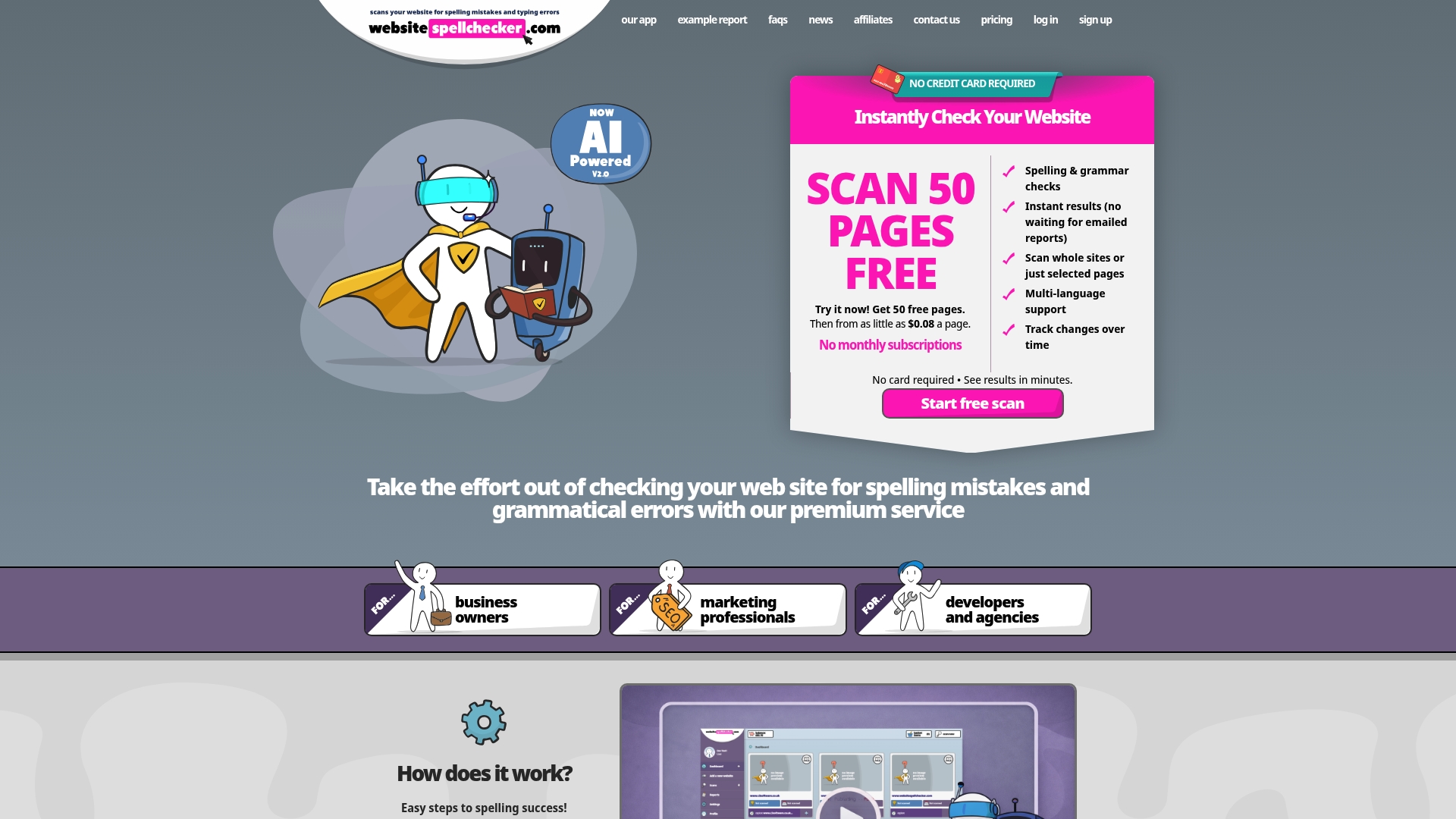
There is no subscription. You pay per page, only when you need to scan, and the free tier lets you check your most important pages at no cost. Business owners and marketing professionals use it to protect brand credibility and catch errors before customers do. Run your first free scan today and have a prioritised fix list ready before lunch.
Useful sources for further reading
- ISO 9241-210 — the international standard defining usability and human-centred design; the authoritative reference for what a usability review should measure.
- W3C WAI evaluation tools and guidance — practical testing resources from the Web Accessibility Initiative, including how to combine automated and manual accessibility checks.
- WAVE Web Accessibility Evaluation Tool — a free browser-based tool for identifying WCAG errors and facilitating manual accessibility review.
- CPUX-UT curriculum (UXQB) — the professional certification body’s curriculum for usability testing; useful for understanding the difference between inspections and user tests.
- Baymard Institute — large-scale UX research covering usability principles, prioritisation methods, and checkout best practices; one of the most cited sources in applied UX.
- ACM Digital Library — UX evaluation practice — academic research on the state of UX evaluation methods, useful for understanding why pragmatic, low-cost approaches are the norm for most teams.